
Overview
Screens & Layers
Overview of Screens and Layers used to build dynamic dashboard layouts.
Next Dashboard uses different screen types to display information depending on the current state of the simulator. Each screen is configured independently and can contain its own widget layout.
Idle Screens
Next Dashboard includes two separate Idle Screens. They are displayed when no supported simulator is actively running and provide a customizable standby view for each dashboard. Each Idle Screen can be personalized with its own visual identity, including its displayed number, name, colors, background, and media. Detailed customization options are covered in the Idle Screen section.
Screens 1 – 4
Each dashboard includes four independent screens. Every screen uses a modular grid where widgets can be positioned and arranged to create a specific layout. Screens can have different widget configurations while sharing selected dashboard-wide settings. This allows each screen to be designed for a different purpose, such as displaying race information, lap timing, vehicle data and more.
Pit Screen
The Pit Screen is a dedicated screen that is automatically displayed while the vehicle is in the pit lane. Unlike Screens 1–4, which are used during normal driving and selected through screen navigation, the Pit Screen is activated according to the vehicle's pit-lane status. It can therefore provide a separate layout focused on information that is particularly useful during pit stops. The Pit Screen can be enabled or disabled from Display Setup.
Screen Layers
Each screen is divided into two independent layers: Main and Overlay. The active layer can be selected from the toolbar.
The Main layer contains the widgets that form the standard screen layout. These widgets provide the information that should normally remain visible while the screen is active.
The Overlay layer is positioned above the Main layer. It is intended for widgets that only need to appear temporarily or under specific conditions, allowing additional information to be displayed without permanently occupying space in the base layout.
For example, an Overlay widget can be shown after a specific event, when a vehicle state changes, or through a manual control. This makes it possible to create dynamic layouts that adapt to the current situation. Any widget can be placed on either the Main or Overlay layer. This provides full control over which information remains permanently visible and which information appears only when required.
Layout Controls
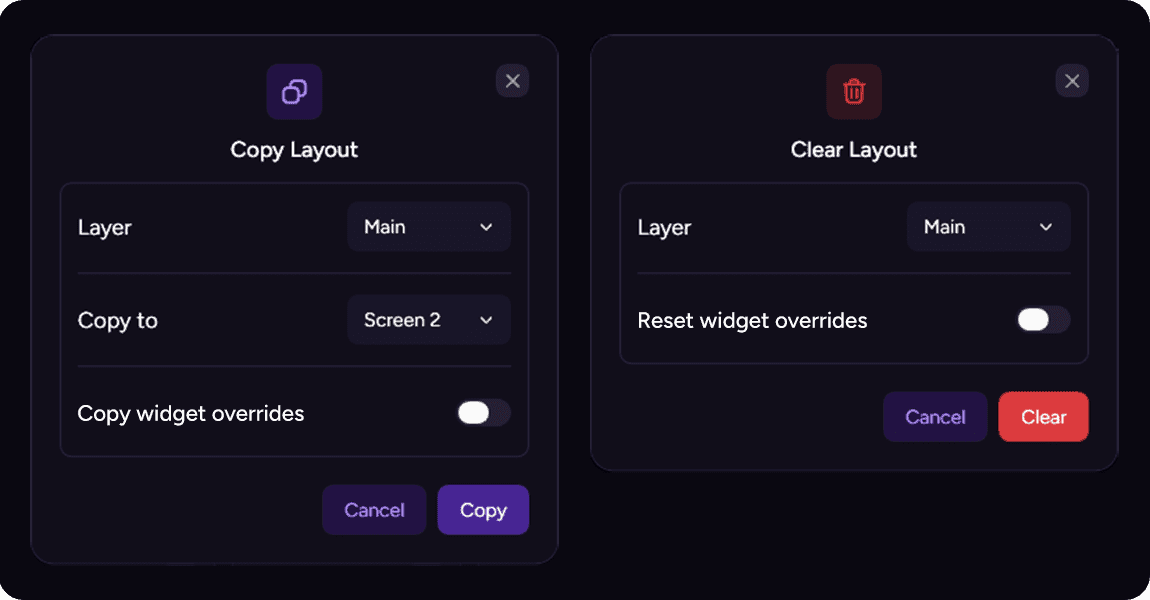
A toolbar is displayed above each screen, providing quick access to layer selection, preview options, and layout management tools. The Copy Layout function allows you to duplicate the current layout to another screen. The dedicated window includes the following options:
Layer: selects the Main layer, Overlay layer, or both layers to copy.
Copy to: selects the destination screen.
Copy widget overrides: also copies the override settings configured for the widgets in the source screen.
The destination layout for the selected layer will be replaced by the copied layout.
The Clear Layout function allows you to remove all widgets from a layer of the current screen. The dedicated window includes the following options:
Layer: selects the Main layer, Overlay layer, or both layers to clear.
Reset widget overrides: also removes the override settings configured for the widgets in the current screen.
The window indicates which screen and layer will be affected before the operation is confirmed. This action affects the selected layer only.
For more information about widget overrides and Override Mode, see Widget Settings.
Next Dashboard uses different screen types to display information depending on the current state of the simulator. Each screen is configured independently and can contain its own widget layout.
Idle Screens
Next Dashboard includes two separate Idle Screens. They are displayed when no supported simulator is actively running and provide a customizable standby view for each dashboard. Each Idle Screen can be personalized with its own visual identity, including its displayed number, name, colors, background, and media. Detailed customization options are covered in the Idle Screen section.
Screens 1 – 4
Each dashboard includes four independent screens. Every screen uses a modular grid where widgets can be positioned and arranged to create a specific layout. Screens can have different widget configurations while sharing selected dashboard-wide settings. This allows each screen to be designed for a different purpose, such as displaying race information, lap timing, vehicle data and more.
Pit Screen
The Pit Screen is a dedicated screen that is automatically displayed while the vehicle is in the pit lane. Unlike Screens 1–4, which are used during normal driving and selected through screen navigation, the Pit Screen is activated according to the vehicle's pit-lane status. It can therefore provide a separate layout focused on information that is particularly useful during pit stops. The Pit Screen can be enabled or disabled from Display Setup.
Screen Layers
Each screen is divided into two independent layers: Main and Overlay. The active layer can be selected from the toolbar.
The Main layer contains the widgets that form the standard screen layout. These widgets provide the information that should normally remain visible while the screen is active.
The Overlay layer is positioned above the Main layer. It is intended for widgets that only need to appear temporarily or under specific conditions, allowing additional information to be displayed without permanently occupying space in the base layout.
For example, an Overlay widget can be shown after a specific event, when a vehicle state changes, or through a manual control. This makes it possible to create dynamic layouts that adapt to the current situation. Any widget can be placed on either the Main or Overlay layer. This provides full control over which information remains permanently visible and which information appears only when required.
Layout Controls
A toolbar is displayed above each screen, providing quick access to layer selection, preview options, and layout management tools. The Copy Layout function allows you to duplicate the current layout to another screen. The dedicated window includes the following options:
Layer: selects the Main layer, Overlay layer, or both layers to copy.
Copy to: selects the destination screen.
Copy widget overrides: also copies the override settings configured for the widgets in the source screen.
The destination layout for the selected layer will be replaced by the copied layout.
The Clear Layout function allows you to remove all widgets from a layer of the current screen. The dedicated window includes the following options:
Layer: selects the Main layer, Overlay layer, or both layers to clear.
Reset widget overrides: also removes the override settings configured for the widgets in the current screen.
The window indicates which screen and layer will be affected before the operation is confirmed. This action affects the selected layer only.
For more information about widget overrides and Override Mode, see Widget Settings.
Any other questions? Get in touch