
Configuration
Display Setup
Configure how the dashboards are displayed, scaled, aligned, and controlled.
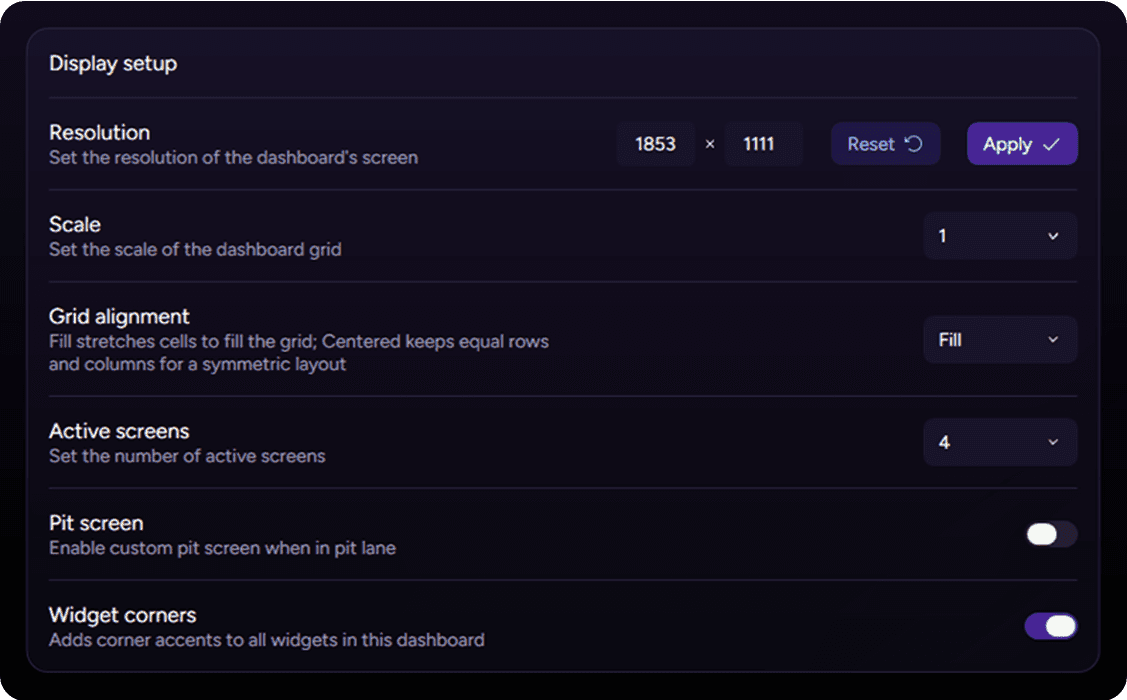
Each dashboard has its own Display Setup configuration. These settings control how the dashboard is rendered, how the widget grid is generated, and which screens are available.
Resolution
Sets the rendering resolution of the dashboard. The selected resolution should normally match the resolution of the display on which the dashboard is shown. Using the correct value ensures that the grid and widgets are scaled and positioned accurately. When the dashboard is displayed as an overlay on top of the game, a resolution of 1920 × 1080 is generally recommended. After changing the resolution, select Apply to update the layout. Select Reset to restore the default value.
Scale
Controls the size of the base grid used to position widgets. A higher scale value creates larger grid cells and therefore increases the displayed size of the widgets. A lower value creates smaller cells and allows more precise positioning. This setting is particularly useful when adapting the dashboard to displays with different pixel densities, such as high-DPI screens.
Grid Alignment
Controls how the widget grid is distributed within the selected resolution.
Fill: stretches the grid to use the entire available screen area.
Centered: keeps the grid proportions symmetrical and centers it within the available area.
The Centered option is useful when the selected resolution would otherwise produce an uneven number of rows or columns, resulting in an asymmetrical layout. Any unused space is distributed evenly around the grid.
Layout reset
Changing the Resolution, Scale, or Grid Alignment clears all screen layouts for the selected dashboard. A confirmation warning is displayed before the changes are applied.
Screens
Controls which screens are available for the selected dashboard. You can enable between 1 and 4 standard screens. Screens above the selected number are disabled and cannot be selected or displayed.
The dedicated Pit Screen can be enabled separately and is not included in the standard screen count. When enabled, it becomes available in the layout navigation and can be configured independently.
Widget Corners
Adds corner accents to all widgets in the selected dashboard. This option only changes the visual appearance of the widgets. It does not affect their size, position, behavior, or functionality.
Display Controls
Display Controls allow keyboard, controller, or steering-wheel inputs to be assigned to dashboard navigation and display functions.
With the Next Screen and Previous Screen controls, you can move forward or backward through the available dashboard screens. Navigation loops continuously: moving past the last screen returns to the first, while moving before the first returns to the last. Only screens enabled through the Active Screens setting are included in the sequence.
Dash Passthrough
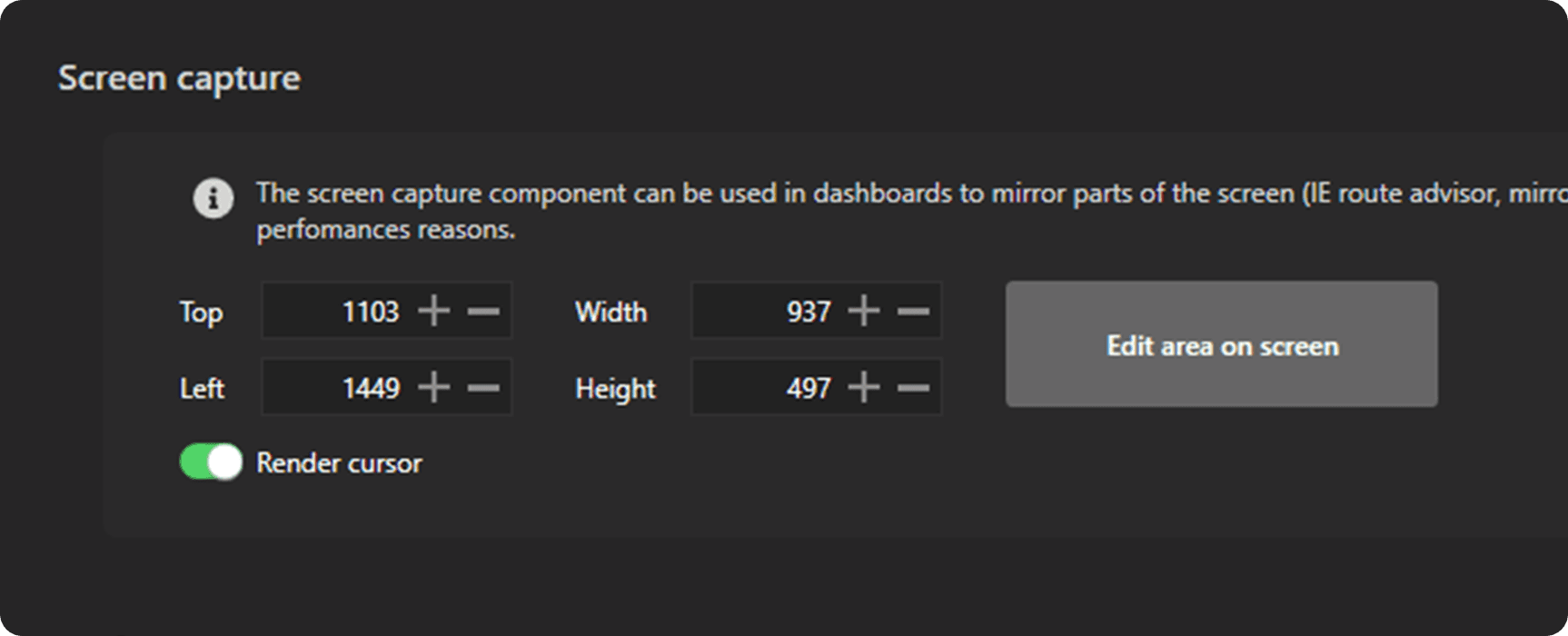
Assigns a control used to enable or disable Dash Passthrough. Dash Passthrough is designed for setups where a physical dashboard is positioned in front of the main game display and covers part of the image. When enabled, the covered portion of the game screen is reproduced on the physical dashboard display, allowing the hidden content to remain visible.
To configure this feature correctly, open Dash Studio, go to Settings, scroll down to Screen capture, and define the area of the game display covered by the physical dashboard.
Each dashboard has its own Display Setup configuration. These settings control how the dashboard is rendered, how the widget grid is generated, and which screens are available.
Resolution
Sets the rendering resolution of the dashboard. The selected resolution should normally match the resolution of the display on which the dashboard is shown. Using the correct value ensures that the grid and widgets are scaled and positioned accurately. When the dashboard is displayed as an overlay on top of the game, a resolution of 1920 × 1080 is generally recommended. After changing the resolution, select Apply to update the layout. Select Reset to restore the default value.
Scale
Controls the size of the base grid used to position widgets. A higher scale value creates larger grid cells and therefore increases the displayed size of the widgets. A lower value creates smaller cells and allows more precise positioning. This setting is particularly useful when adapting the dashboard to displays with different pixel densities, such as high-DPI screens.
Grid Alignment
Controls how the widget grid is distributed within the selected resolution.
Fill: stretches the grid to use the entire available screen area.
Centered: keeps the grid proportions symmetrical and centers it within the available area.
The Centered option is useful when the selected resolution would otherwise produce an uneven number of rows or columns, resulting in an asymmetrical layout. Any unused space is distributed evenly around the grid.
Layout reset
Changing the Resolution, Scale, or Grid Alignment clears all screen layouts for the selected dashboard. A confirmation warning is displayed before the changes are applied.
Screens
Controls which screens are available for the selected dashboard. You can enable between 1 and 4 standard screens. Screens above the selected number are disabled and cannot be selected or displayed.
The dedicated Pit Screen can be enabled separately and is not included in the standard screen count. When enabled, it becomes available in the layout navigation and can be configured independently.
Widget Corners
Adds corner accents to all widgets in the selected dashboard. This option only changes the visual appearance of the widgets. It does not affect their size, position, behavior, or functionality.
Display Controls
Display Controls allow keyboard, controller, or steering-wheel inputs to be assigned to dashboard navigation and display functions.
With the Next Screen and Previous Screen controls, you can move forward or backward through the available dashboard screens. Navigation loops continuously: moving past the last screen returns to the first, while moving before the first returns to the last. Only screens enabled through the Active Screens setting are included in the sequence.
Dash Passthrough
Assigns a control used to enable or disable Dash Passthrough. Dash Passthrough is designed for setups where a physical dashboard is positioned in front of the main game display and covers part of the image. When enabled, the covered portion of the game screen is reproduced on the physical dashboard display, allowing the hidden content to remain visible.
To configure this feature correctly, open Dash Studio, go to Settings, scroll down to Screen capture, and define the area of the game display covered by the physical dashboard.
Any other questions? Get in touch