
Getting Started
Introduction
What Next Dashboard is, its requirements, installation, and first launch.
Next Dashboard is a customizable dashboard system for SimHub designed to provide clear, flexible, and consistent telemetry information while driving. The system combines the Next Dashboard, which displays the telemetry data, with the Next Plugin, which manages widget settings, layouts, configurations, updates, and additional features. Instead of using a fixed dashboard layout, Next Dashboard allows you to choose which widgets to display, where to place them, and how they should behave.
Requirements
Before installing Next Dashboard, make sure you have:
The latest supported version of SimHub.
A racing simulator supported by both SimHub and Next Dashboard.
An active Discord account.
An internet connection for installation, account authentication, licence verification, and updates.
Next Dashboard can be displayed on the same computer running SimHub or on a compatible secondary display, smartphone, or tablet. Some features and widgets may only be available with specific subscription plans or supported simulators.
Next Dashboard uses Discord for account authentication. Your Discord account is linked to your Next Sim Racing profile and is used to identify your license, subscription plan, and access permissions. For more information, see Accounts & Plans.
Installation
To install Next Dashboard:
Download the latest version of Next Dashboard.
Close SimHub before starting the installation.
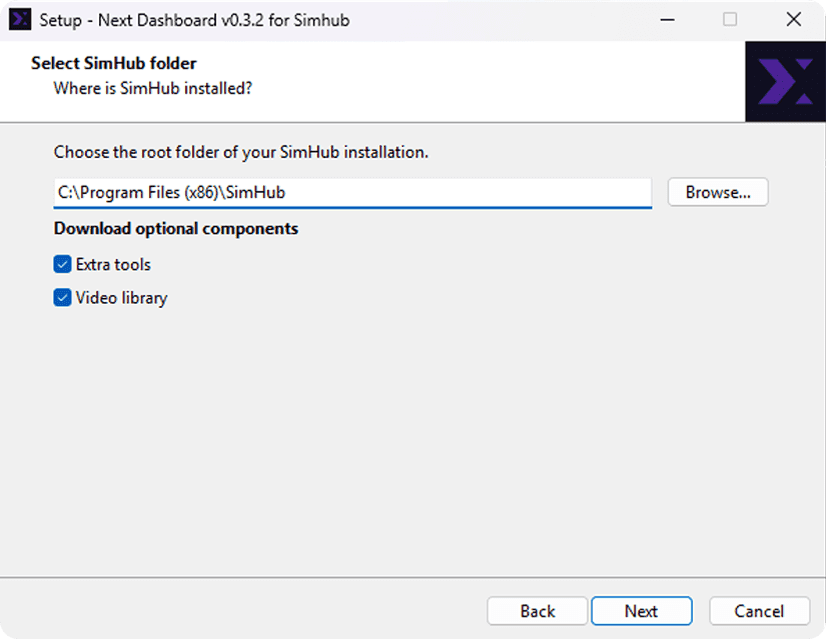
Run the installer and follow the instructions.
Select your SimHub installation folder if it is not detected automatically.
Choose whether to install the optional components:
Built-in Video Library: installs the video files used by the built-in media library.
Extra Tools: installs FFmpeg and ffprobe, which are required by the plugin to process and manage custom media files.
Complete the installation and launch SimHub.
Do not manually move, rename, or modify the installed files, as this may prevent Next Dashboard or its update system from working correctly.
First Launch
After installing Next Dashboard, open SimHub and enable the plugin:
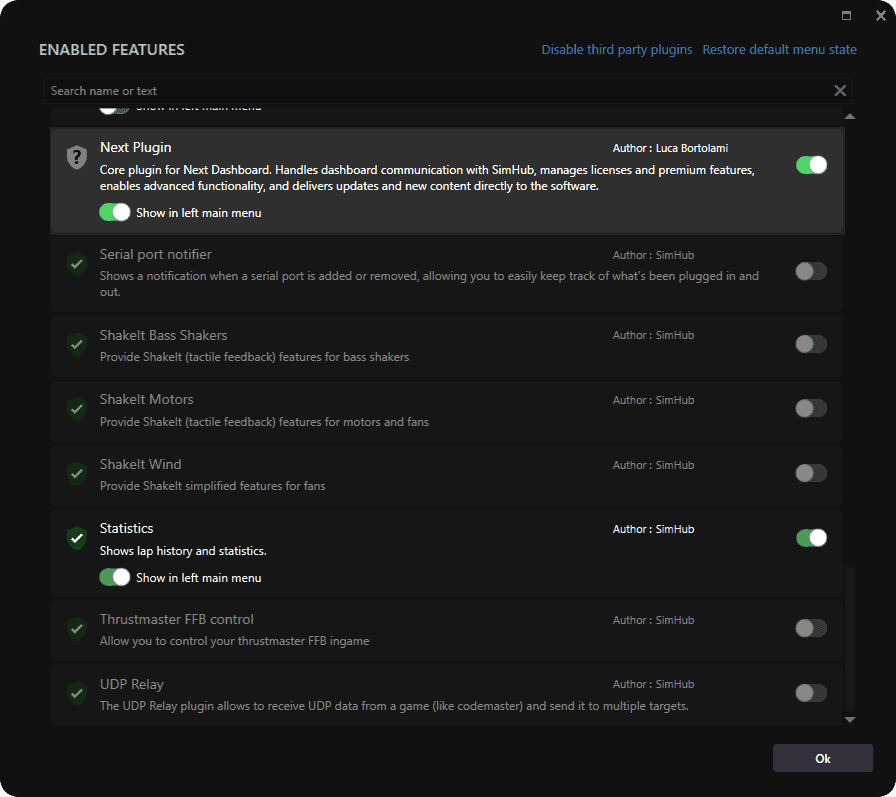
If not automatically detected, click Add/remove features in the bottom-left corner of SimHub.
Find Next Plugin in the list of available plugins.
Enable the plugin using its toggle.
Enable Show in left main menu to keep Next Plugin accessible from the main SimHub navigation.
Open Next Plugin from the left navigation menu.
Click Sign in with Discord.
Authorize Next Plugin to connect your Discord account.
Install or update any component marked as missing or outdated.
Select or create a dashboard configuration.
Start a supported simulator to begin receiving telemetry data. Some widgets may remain empty or display placeholder values until a supported simulator and session are running.
Recommended settings
In SimHub, open Dash Studio, go to Settings and scroll down to the Performance section, then set: - Default desktop render: HTML - Render speed: Very Fast These settings provide better performance and ensure that Next Dashboard is displayed correctly.
Next Dashboard is a customizable dashboard system for SimHub designed to provide clear, flexible, and consistent telemetry information while driving. The system combines the Next Dashboard, which displays the telemetry data, with the Next Plugin, which manages widget settings, layouts, configurations, updates, and additional features. Instead of using a fixed dashboard layout, Next Dashboard allows you to choose which widgets to display, where to place them, and how they should behave.
Requirements
Before installing Next Dashboard, make sure you have:
The latest supported version of SimHub.
A racing simulator supported by both SimHub and Next Dashboard.
An active Discord account.
An internet connection for installation, account authentication, licence verification, and updates.
Next Dashboard can be displayed on the same computer running SimHub or on a compatible secondary display, smartphone, or tablet. Some features and widgets may only be available with specific subscription plans or supported simulators.
Next Dashboard uses Discord for account authentication. Your Discord account is linked to your Next Sim Racing profile and is used to identify your license, subscription plan, and access permissions. For more information, see Accounts & Plans.
Installation
To install Next Dashboard:
Download the latest version of Next Dashboard.
Close SimHub before starting the installation.
Run the installer and follow the instructions.
Select your SimHub installation folder if it is not detected automatically.
Choose whether to install the optional components:
Built-in Video Library: installs the video files used by the built-in media library.
Extra Tools: installs FFmpeg and ffprobe, which are required by the plugin to process and manage custom media files.
Complete the installation and launch SimHub.
Do not manually move, rename, or modify the installed files, as this may prevent Next Dashboard or its update system from working correctly.
First Launch
After installing Next Dashboard, open SimHub and enable the plugin:
If not automatically detected, click Add/remove features in the bottom-left corner of SimHub.
Find Next Plugin in the list of available plugins.
Enable the plugin using its toggle.
Enable Show in left main menu to keep Next Plugin accessible from the main SimHub navigation.
Open Next Plugin from the left navigation menu.
Click Sign in with Discord.
Authorize Next Plugin to connect your Discord account.
Install or update any component marked as missing or outdated.
Select or create a dashboard configuration.
Start a supported simulator to begin receiving telemetry data. Some widgets may remain empty or display placeholder values until a supported simulator and session are running.
Recommended settings
In SimHub, open Dash Studio, go to Settings and scroll down to the Performance section, then set: - Default desktop render: HTML - Render speed: Very Fast These settings provide better performance and ensure that Next Dashboard is displayed correctly.
Any other questions? Get in touch